User Guide — AINovelUS
How to use AINovelUS: from setting up a novel to storyboards, webtoon panels and speech bubbles.
- Write long-form novels scene by scene with AI that remembers your world, characters and foreshadowing
- Break scenes into storyboards and generate webtoon panels where every character stays consistent
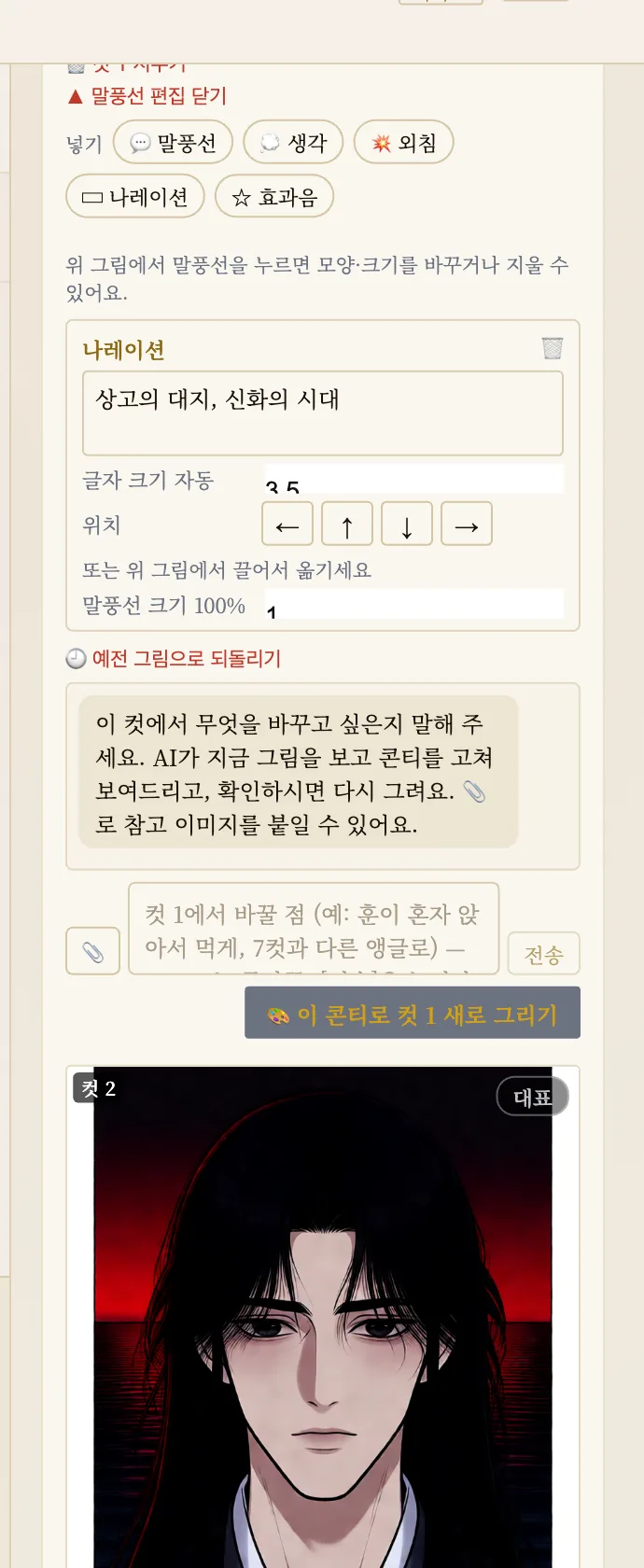
- Speech bubbles live on a separate layer — move them, edit lines and translate without redrawing
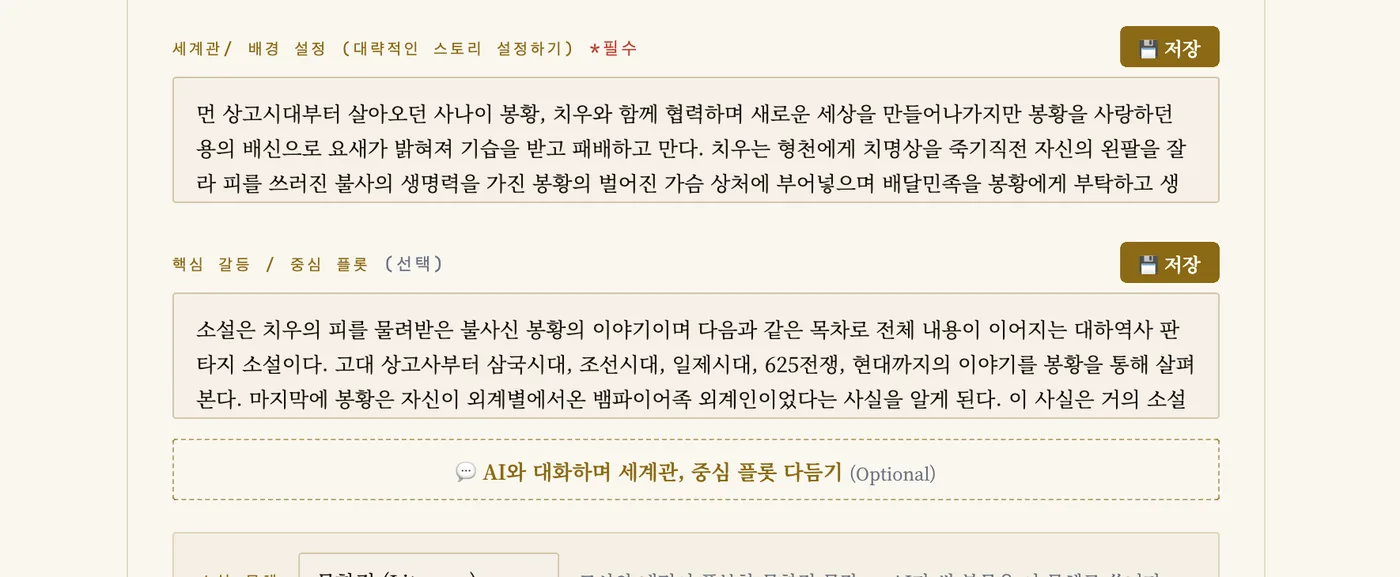
1. Set up your novel
Open New Novel Setup, enter a title, genre, world, core conflict and characters, then choose a writing style and a webtoon art style.
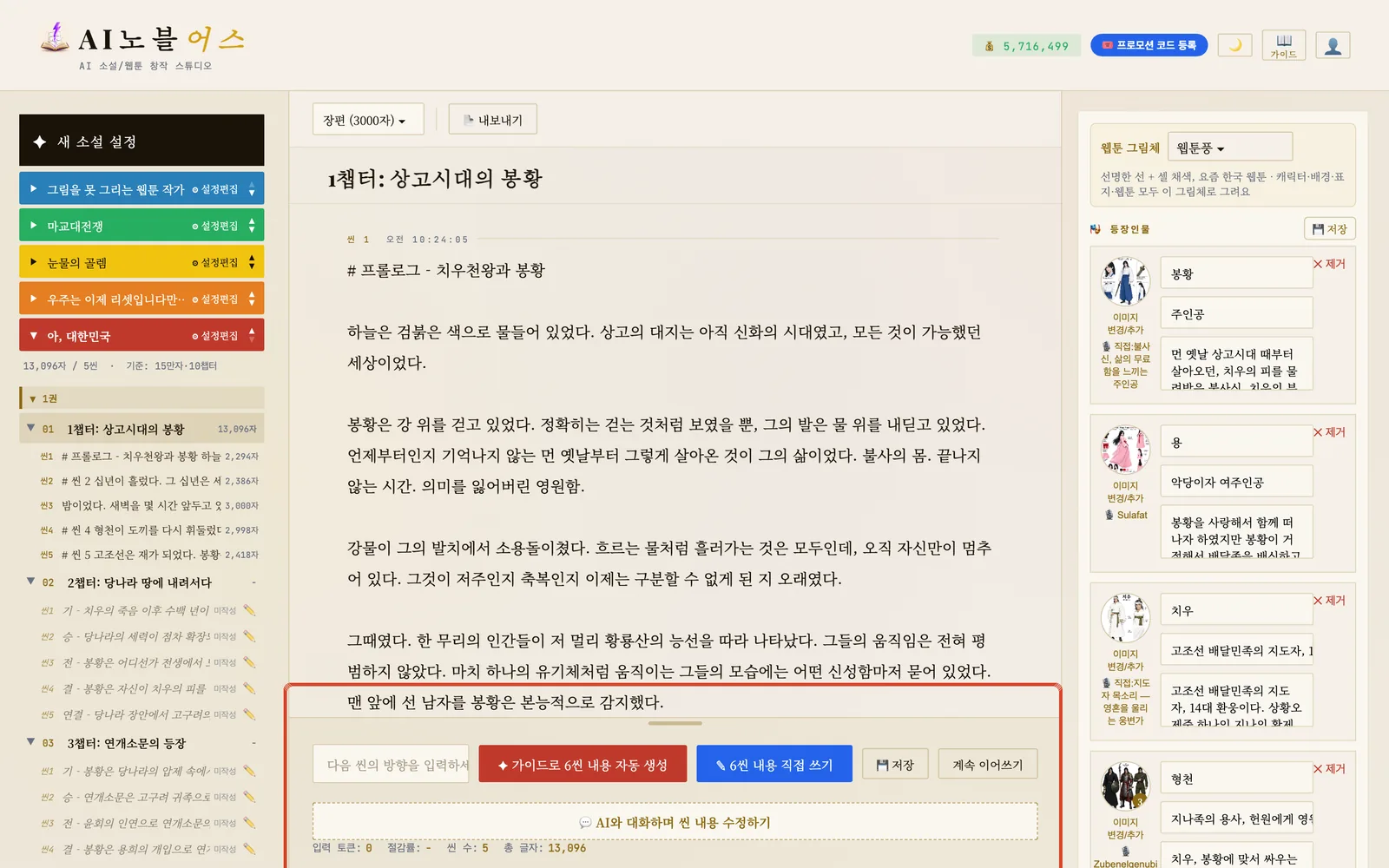
2. Write with AI
Generate each scene from your outline, write it yourself, or continue from the last scene. Edit any part by chatting with AI.
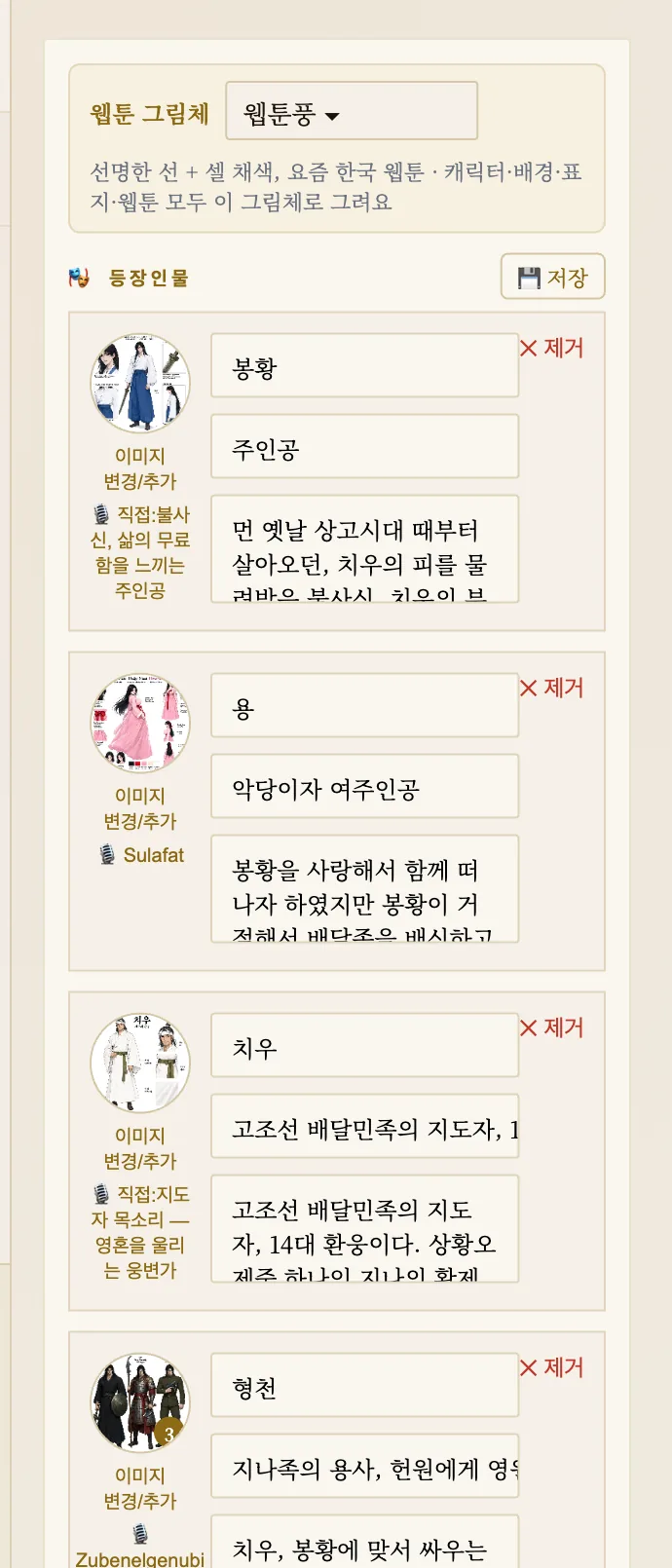
3. Character and background masters
Create a master image for every character and place so every panel keeps the same face, outfit and setting.
4. Storyboard to webtoon panels
AI reads the scene and builds a panel-by-panel storyboard, then draws the panels. A 3,000-character scene becomes 16 panels.
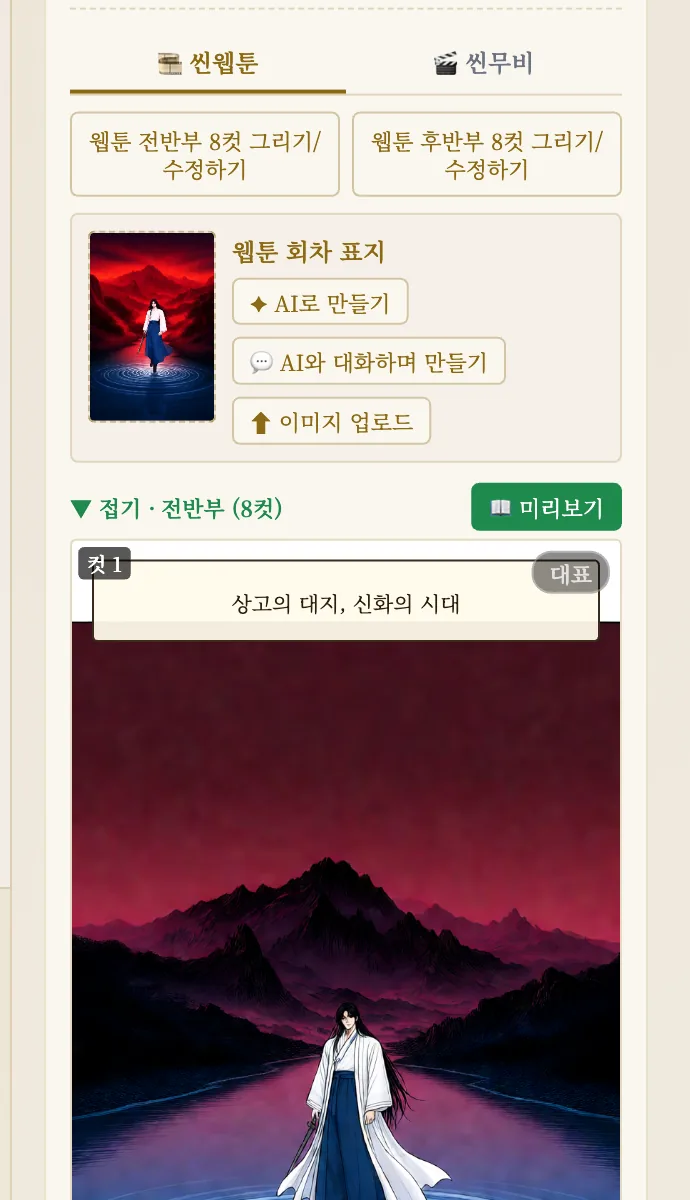
5. Speech bubbles, preview and download
Move and edit bubbles without redrawing, switch between Korean, English and Japanese, redraw a single panel, and download the vertical strip.